
Compresso
Desktop vs. Browser: Why Local Compression Feels Faster
If online compressors always feel slower than they should, this is why. Here’s what a desktop app skips and why local processing feels easier in real work.
If you have ever tried to compress a big video in your browser, you already know the feeling.
You upload the file, wait for the tool to process it, wait again for the download, and by the end of it, the whole thing feels slower than it should have been.
That is why desktop compression feels different. It is not always because the machine is magically faster. A lot of the time, it is because a desktop app skips a bunch of extra steps that browser tools cannot avoid.
That is the real speed advantage. Less waiting around the actual work.
The browser adds extra travel time
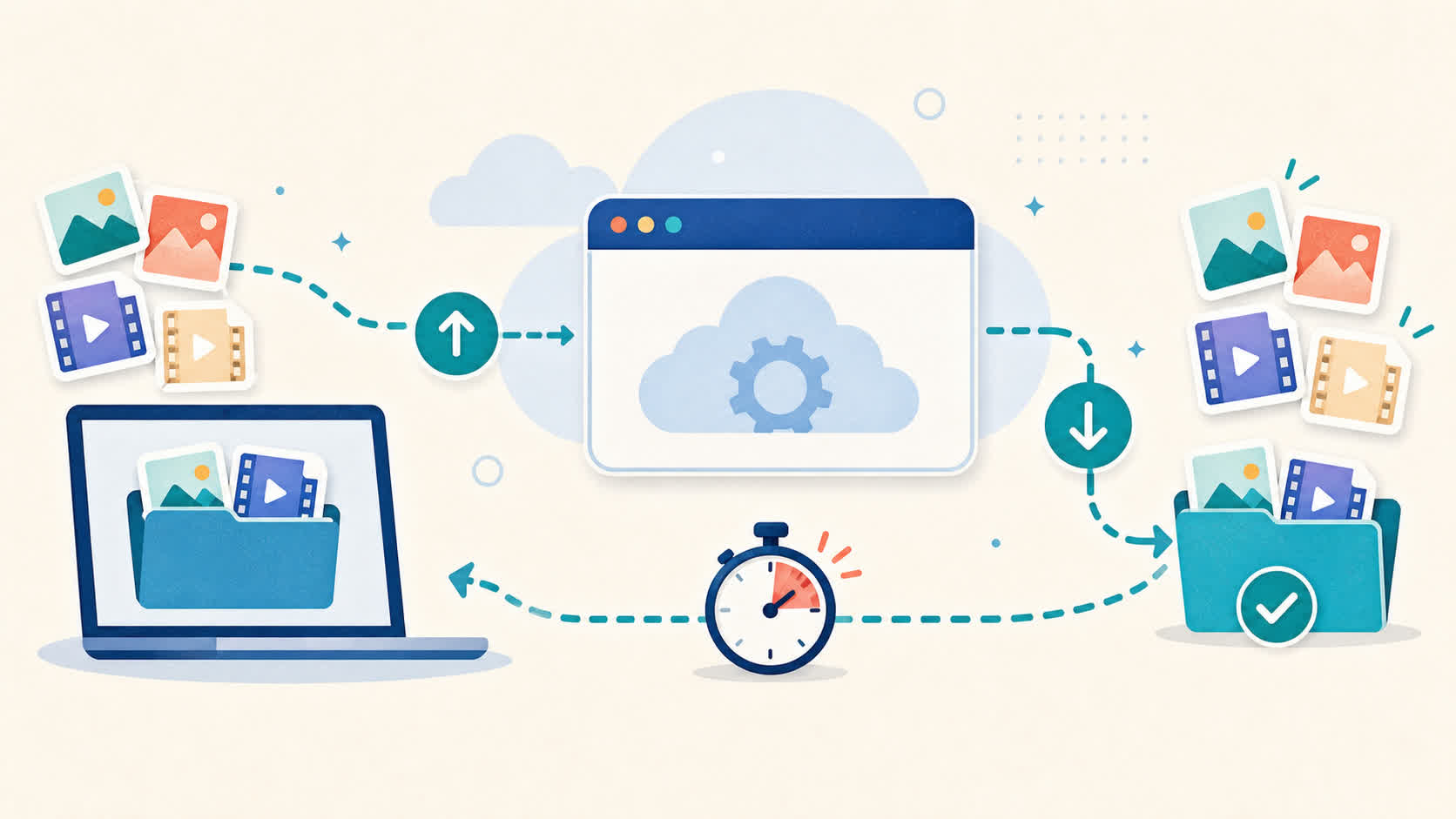
When you use an online compressor, your file does not go straight from "too big" to "ready to use." It has to leave your computer first.
That means you export the file, upload it to a remote server, wait for the processing there, and then download the result back to your machine. Even if each part works fine, it is still a longer route.
With a desktop app, the file stays on your device from start to finish. It is read locally, processed locally, and written back to your drive locally. There is no upload step and no download step.
That sounds obvious, but it makes a big difference in real work.
Total time matters more than "processing time"
This is where people get confused.
They compare only the moment when compression starts and ends, but that is not the full job. The real question is: how long does it take to go from export to a finished file you can actually use?
In a browser workflow, the full process usually looks like this:
- Export the file
- Open the website
- Upload the file
- Wait for processing
- Download the result
- Move it back to the right folder
With a desktop app, it is closer to this:
- Export the file
- Drop it into the app
- Compress it
- Use the output
Fewer steps usually means less waiting, less clicking, and less room for dumb mistakes.
That is why local compression often feels faster even before you talk about settings, formats, or file size.
Big files make the browser problem worse
If you are compressing a tiny image once in a while, the browser delay may not bother you much.
But once you start dealing with real files, the extra travel becomes a pain. A big video export, a folder full of product shots, or a bunch of client assets can turn a simple task into a stop-and-wait routine.
The bigger the file is, the more the upload and download loop starts to hurt. And if your connection is unstable, it gets worse fast.
You are not just waiting for compression anymore. You are waiting for the internet too.
That is a bad dependency to build your workflow around.
Local apps feel smoother because the workflow is shorter
This is the part people notice right away.
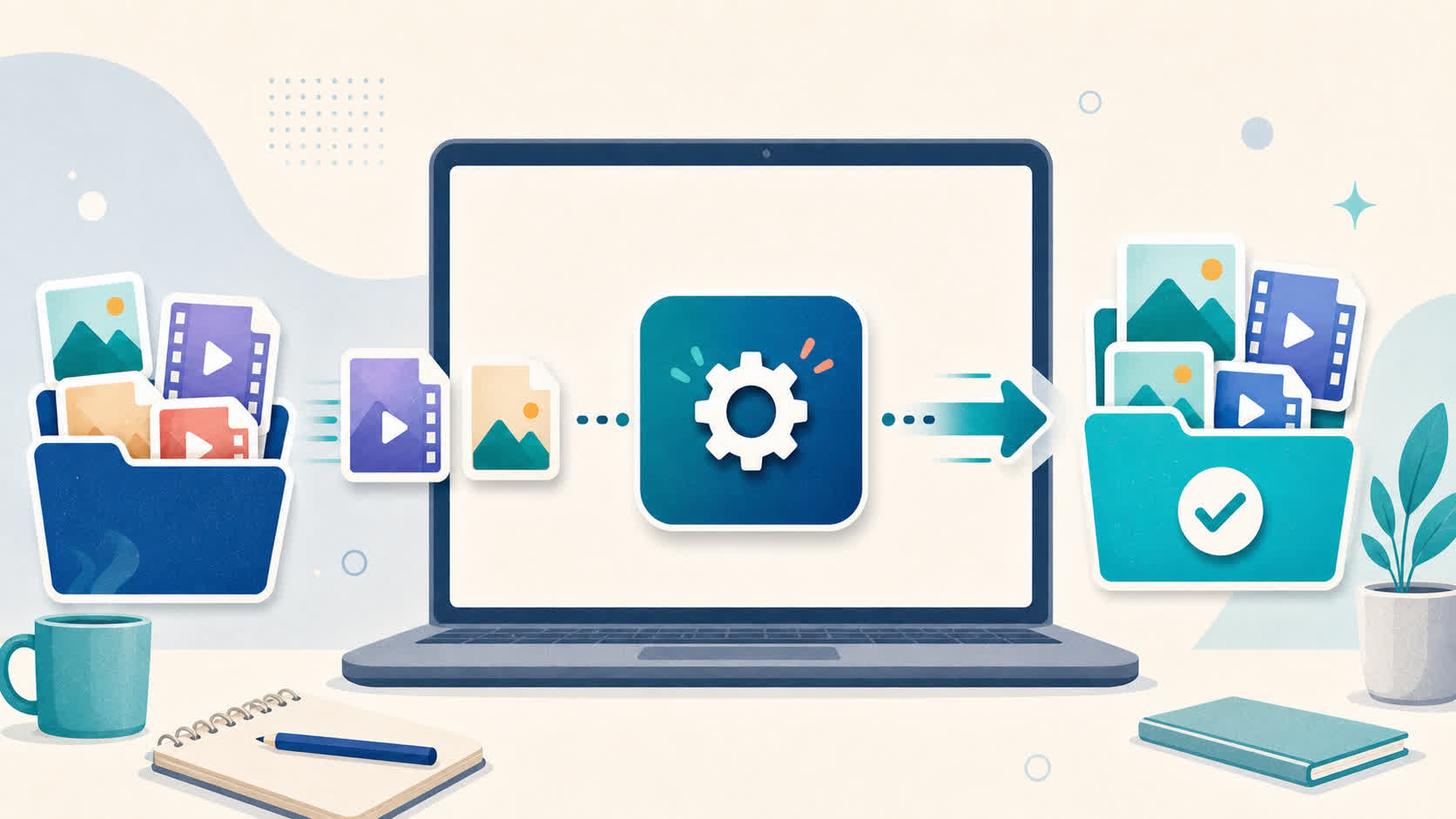
A desktop app feels smoother because it fits naturally into the rest of the job. You already exported the files on your machine. You already know where the originals are. You usually want the result back on that same machine.
So the desktop flow makes sense:
- pick the file or folder
- compress it
- keep working
There is no handoff to a website in the middle. There is no browser tab to keep open. There is no extra download to sort out afterward.
It feels simple because it is simple.
That matters more than people think. A tool that saves five annoying steps can feel more valuable than a tool that wins a narrow benchmark by a few seconds.
A local app is easier to trust during real work
Speed is not only about raw performance. It is also about reliability.
Browser tools depend on more things going right. Your connection has to stay stable. The site has to stay responsive. The upload cannot fail halfway through. The processed file still has to come back down cleanly.
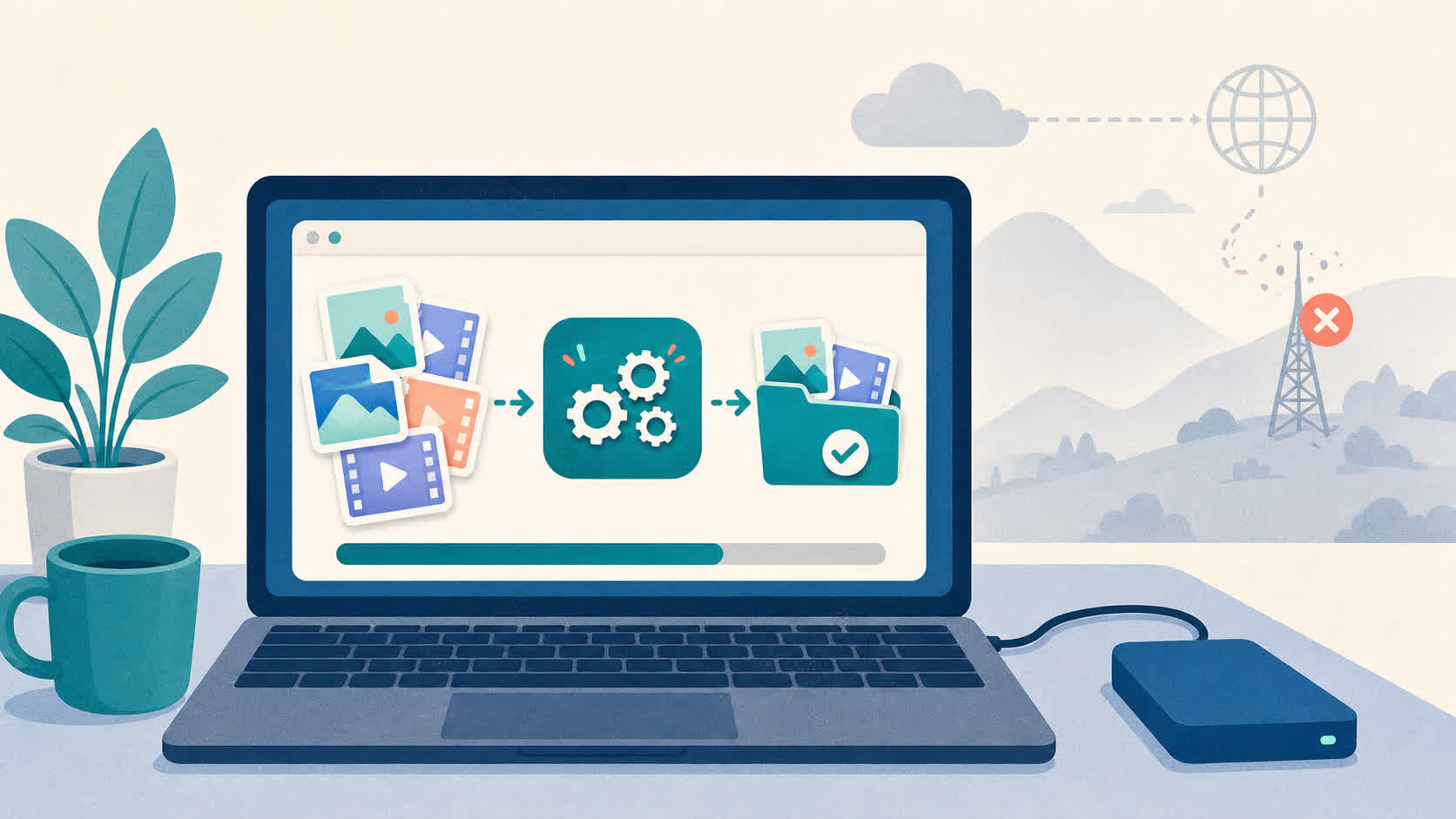
A desktop app removes a lot of that uncertainty. Compresso works offline, so your files stay on your device and your workflow does not stop just because your connection is weak or unavailable.
That becomes very real when you are traveling, working from a train, sitting in a cafe, or dealing with bad hotel Wi-Fi. If your laptop is ready, the app is ready too.
This is especially true when you work in batches
The browser workflow is annoying enough for one file.
It gets much worse when you have ten, twenty, or two hundred files to handle. Every extra upload and download becomes more friction. Every extra step becomes more repetition.
That is why local tools feel more practical for real content work. You are not just saving time on one file. You are cutting the repeated steps that pile up across the whole batch.
With Compresso, files mode supports drag and drop or the file picker, and folder mode lets you process full folders while keeping the folder structure intact. That matters when the job is bigger than a one-off upload.
The longer the workflow, the more local processing helps.
The point is not "browser bad, desktop good"
There is still a place for quick web tools. If you have one tiny file and just need to do something fast on any machine, a browser tool can be fine.
But that is not how a lot of creative work actually happens. Most people are dealing with repeated exports, batches of assets, client files, and folders that need to stay organized.
That is where the desktop model starts to make more sense. The file already lives on your machine. The output needs to end up on your machine. So doing the work on your machine is usually the cleaner path.
A simple rule that helps
If the file is large, private, or part of a bigger batch, local compression is usually the better choice.
If the file is tiny and disposable, a browser tool may be enough.
That one rule will save you a lot of frustration.
It also helps you stop treating every compression job the same way. Different workflows need different tools.
Bottom line
Desktop compression feels faster because it removes the extra trip. Your file does not need to go up to a server and then come back down before you can use it.
That means fewer steps, less waiting, fewer failures, and a workflow that feels much more natural when you are dealing with real files instead of toy examples.
If online compressors always feel slower than they should, you are probably not imagining it. A lot of the delay is built into the browser workflow itself.
When the work stays local, the process usually feels faster because it is shorter.

Written by Lovish Jain
Building products to help you move faster. Follow me for updates and tips.